How to Turn a Family Photo Into a Personalized Gift
Learn how to create a family portrait from your photos, prepare it for printing, and turn it into framed art, cards, mugs, totes, or shirts.
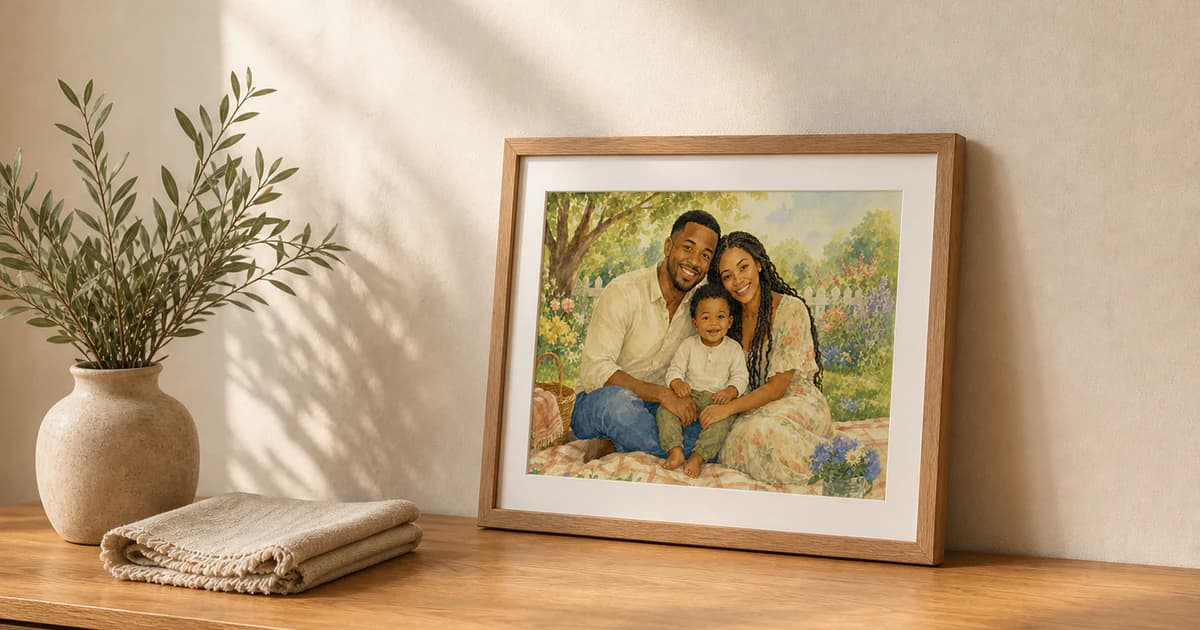
The best personalized gifts begin with an image that feels like the people receiving it. A favorite family photo can become framed wall art, a greeting card, a mug, a tote bag, or a shirt. The difficult part is often finding one recent photo where everyone is together and looks like themselves.
With FamilyShoot, you can create that missing family portrait first. Upload separate photos of the adults, children, and selected pets, choose a style, and make one finished portrait. Once you have a version you love, you can prepare it for a physical keepsake.
This guide explains the complete process, from choosing the image to uploading a print-ready file in the FamilyShoot Printify-powered shop.
Start with the gift, not the product list
Before you create the portrait, decide how the finished gift should feel. A framed portrait for grandparents needs a different composition from a playful tote bag or a folded birthday card.
Ask three simple questions:
- Who will receive the gift?
- Where will they use or display it?
- Should the portrait feel natural, formal, playful, or illustrative?
A warm watercolor portrait can work well for cards, mugs, and framed art. A clean studio portrait can suit wall art or a shirt. A natural outdoor portrait can make a thoughtful family keepsake for a birthday, anniversary, reunion, Mother's Day, Father's Day, or holiday.
If everyone is in different photos, start with our guide to creating a family portrait from separate photos.
Choose a portrait that will print clearly
An image can look beautiful on a phone but become difficult to read on a physical product. Before you print it, check the portrait at a larger size.
Look for:
- Faces that are large enough to recognize.
- Clear eyes and natural expressions.
- Good contrast between the family and the background.
- Enough space around heads, hands, and feet.
- A balanced crop that does not place important details near an edge.
- A background that supports the family instead of competing with them.
Avoid very dark portraits, tiny full-body figures, crowded scenes, and important details close to the border. Product templates can crop the outer parts of an image.
Match the portrait to the product
One portrait can work across several products, but each product has a different printable area.
Framed wall art
Framed art gives the portrait the most room. Choose the crop that best matches the original composition. Landscape portraits work well above a console or sofa. Portrait crops suit narrow walls, shelves, and smaller rooms.
Keep every face away from the outer edge. If the product includes a mat, preview how much space it adds around the image.
Mugs and tote bags
Mugs and totes work best when the family is grouped near the center. A simple background helps the people remain clear when the image becomes smaller or wraps around a curved surface.
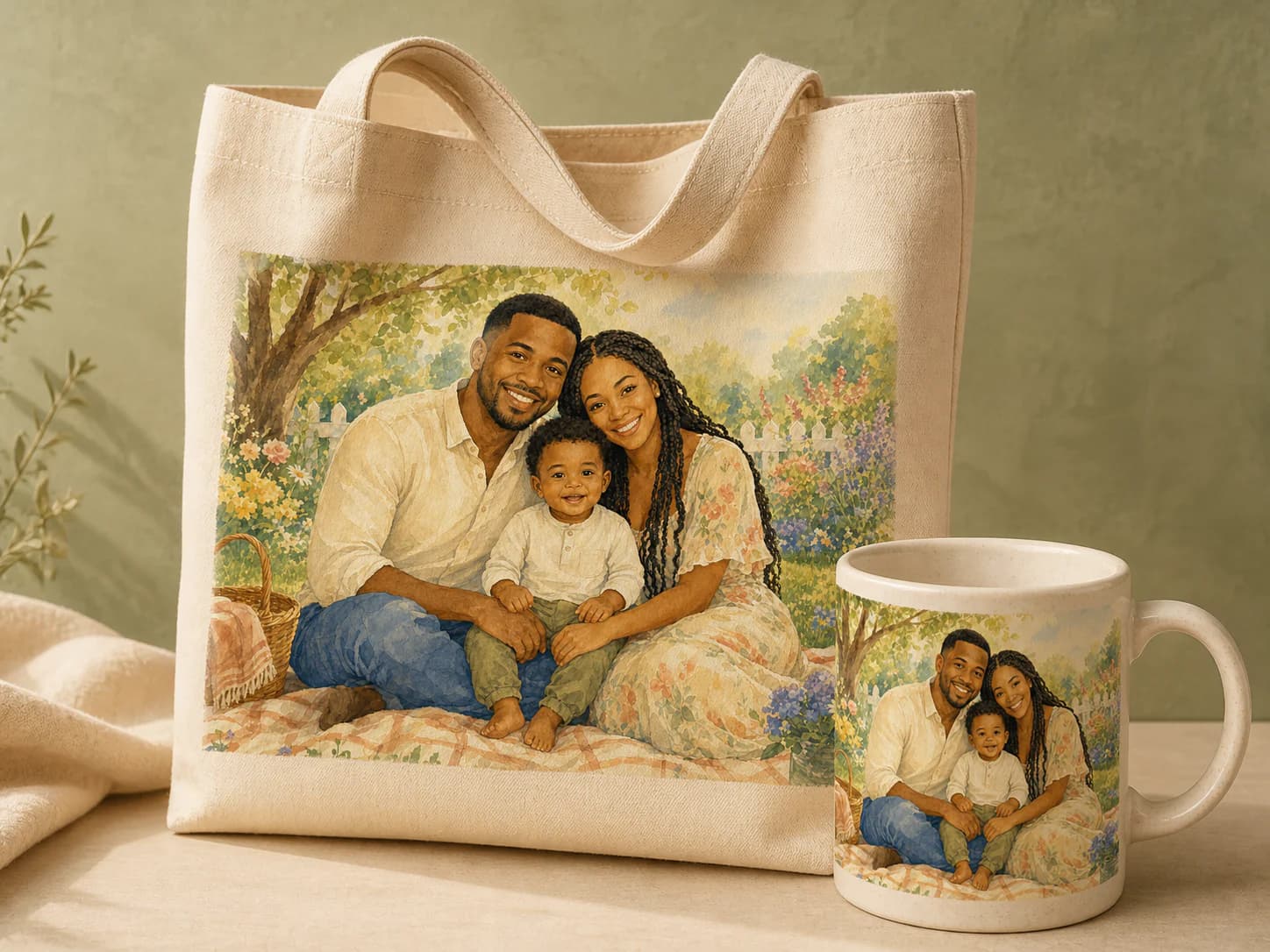
For a mug, check every side of the product preview. Make sure a face does not disappear near the handle or wrap seam.
Shirts
A shirt is easier to read when the portrait has a strong central shape. Close family groupings and illustrated portraits usually work better than wide scenes with a large background.
Leave some room around the image. A print that fills the entire chest area can feel heavier than it looked in the editor.
Greeting cards
Cards need breathing room. If you plan to add a message, choose a composition with open space around the family. Keep faces and small details away from folds and trim areas.
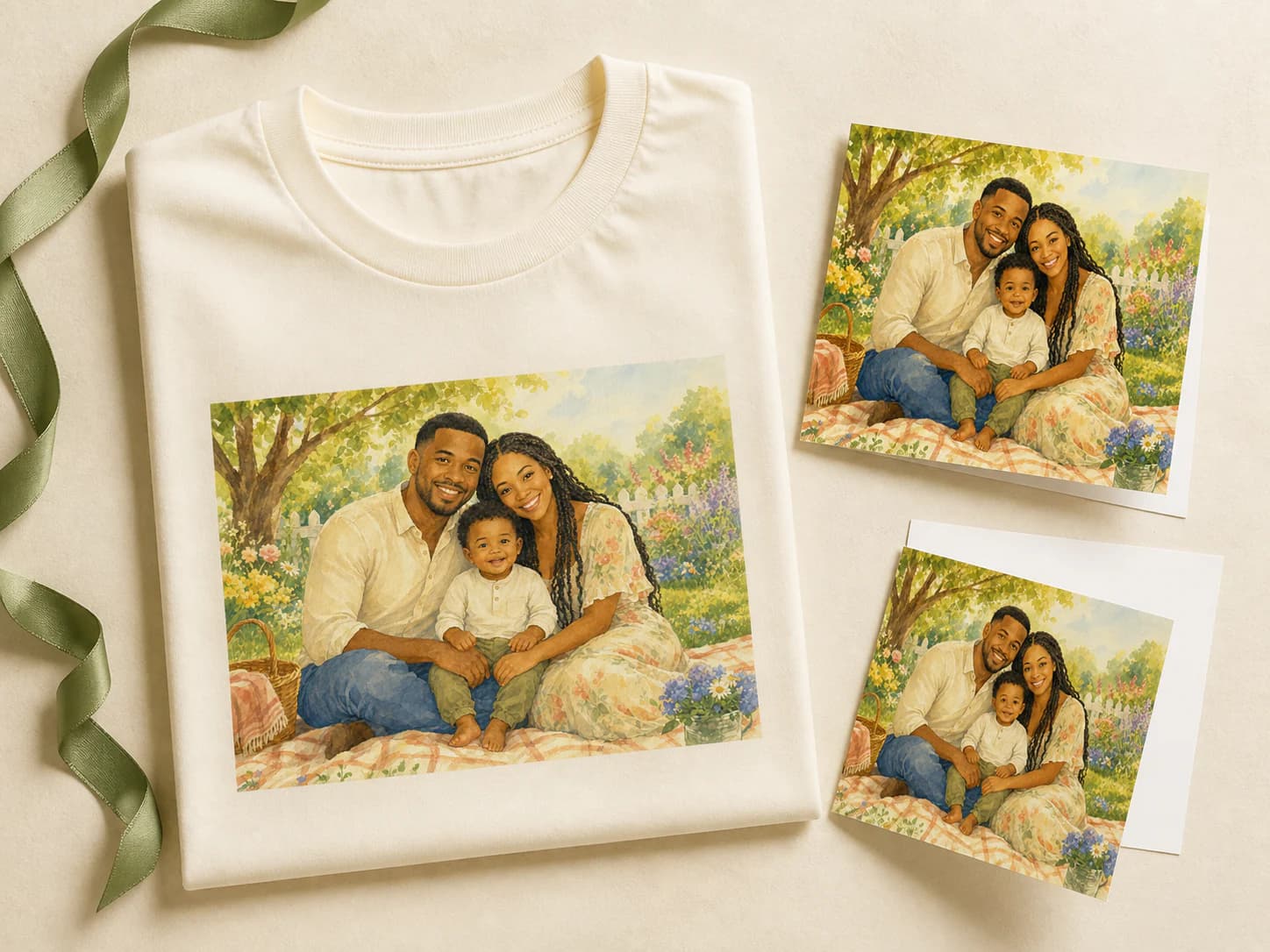
For a card designed around a specific occasion, you can also start with the FamilyShoot cards collection.
How to turn the portrait into a personalized gift
The FamilyShoot print flow has three parts.
1. Create and unlock your portrait
Upload one clear reference photo for each person. Add a pet if the selected style supports one. Choose a portrait or card style, then review the generated options.
You can create a free watermarked preview first. Select and unlock the photoshoot before preparing a file for printing.
2. Prepare the shop-ready file
Open the finished portrait in your FamilyShoot album and select Export. Choose Print your photo, then select Prepare and download.
FamilyShoot prepares a high-quality JPEG for the shop. It keeps the shape of your portrait, applies the correct image orientation, and limits the longest side to 3000 pixels.
The file downloads to your device. FamilyShoot does not send your portrait to the print shop automatically.
3. Upload the file and choose a product
After the download finishes, open the FamilyShoot shop and select a product. Upload the saved JPEG in the product editor, adjust its size and position, and check every part of the preview before ordering.
The Printify-powered shop handles payment, printing, delivery, and order support. Shop prices are shown in USD.
Check the product preview before ordering
The preview is your final chance to check the placement. Review it at the largest size the editor allows.
Confirm that:
- Every face is fully visible.
- No important detail sits on a fold, seam, handle, or trim line.
- The image is not stretched.
- The portrait is centered as intended.
- The background reaches the required print area.
- The selected product color works with the portrait.
For shirts and totes, light fabric often works well with warm watercolor and pastel portraits. Dark products can work with brighter images, but check that shadow details remain visible.
Ideas for different recipients
The same family portrait can become a different gift depending on who receives it.
- Grandparents: framed art, greeting cards, or a mug with the children and grandchildren.
- Parents: a tote, framed print, or shirt for Mother's Day, Father's Day, or a birthday.
- Long-distance family: matching mugs or cards featuring relatives who could not be in one original photo.
- New parents: a small framed portrait or card featuring the new baby and family.
- Couples: an anniversary portrait on a card or framed print.
- Pet families: a portrait that includes the selected pet on a mug, tote, or wall print.
For more recipient-specific advice, read our guide to family portrait gifts for grandparents.
Common questions
Does FamilyShoot place the order for me?
No. FamilyShoot prepares and downloads the shop-ready image. You then upload that file to the Printify-powered shop, select the product, and place the order.
Can I print a free preview?
The free preview is watermarked. Unlock the photoshoot before you prepare the shop-ready file.
What file does FamilyShoot prepare?
FamilyShoot prepares a high-quality JPEG with a maximum dimension of 3000 pixels and a maximum file size of 15 MB. It preserves the portrait's shape.
Who handles printing and delivery?
The Printify-powered shop handles payment, printing, delivery, and order support. FamilyShoot creates the portrait and prepares the file.
Can I use the downloaded file somewhere else?
The downloaded image is yours to keep. Check the size, crop, and file requirements of any other printing service before uploading it there.
Make the gift personal
A personalized family gift does not need an elaborate design. It needs a portrait that the recipient recognizes and wants to keep.
Choose clear reference photos, create a style that suits the person receiving the gift, and select the product before you finalize the crop. When you are ready, create a free FamilyShoot preview and turn the portrait you love into something you can hold.
Make one now
Turn your photos into a family portrait.
Upload one clear photo per person, choose a portrait or card style, and keep the version that feels most like your family.