How to Make an AI Family Photo With Pets
Learn how to include dogs, cats, and other pets in an AI family portrait without making the final photo look crowded or fake.
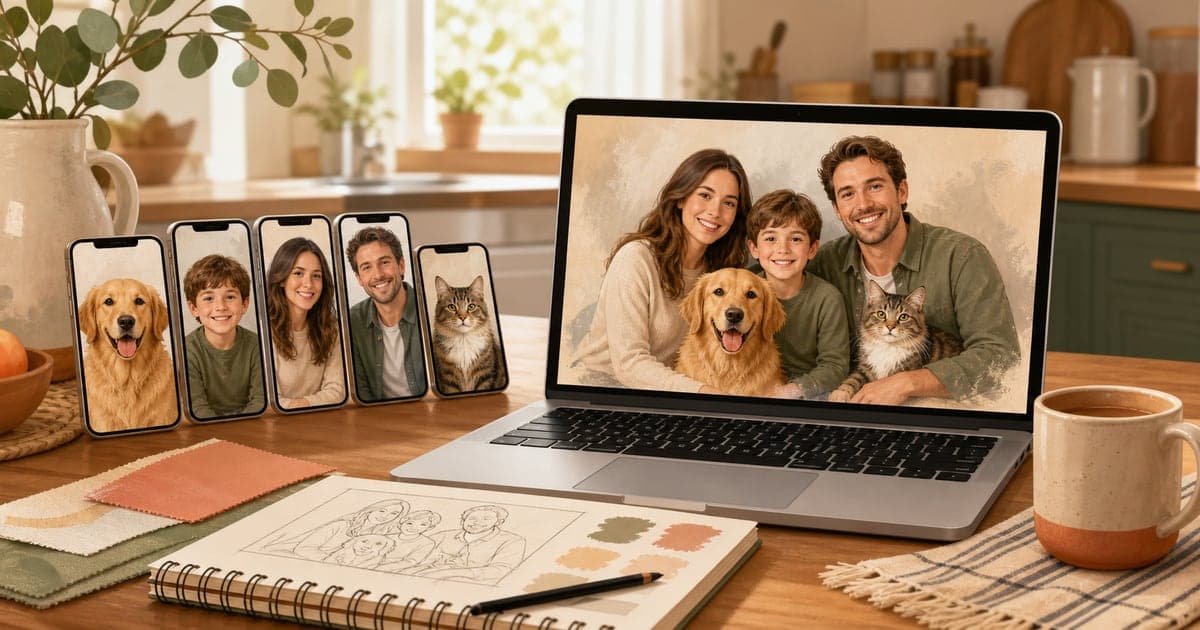
For a lot of families, the pet is not a prop. The dog is in the middle of every couch photo. The cat appears exactly when nobody invited them. The puppy is the reason the kids smile. So if you are making an AI family photo with pets, it makes sense to include them on purpose instead of hoping the final image handles them gracefully.
The trick is to treat pets like real subjects. Give the AI a clear reference, choose a pose that could actually happen, and keep the scene simple enough that the family still feels like the focus.
FamilyShoot is built around reference photos, so you can add the people who need to appear in the portrait and include a pet when the pet belongs in the final image. If you are still collecting photos, start with the broader guide on how to create a family portrait from separate photos.
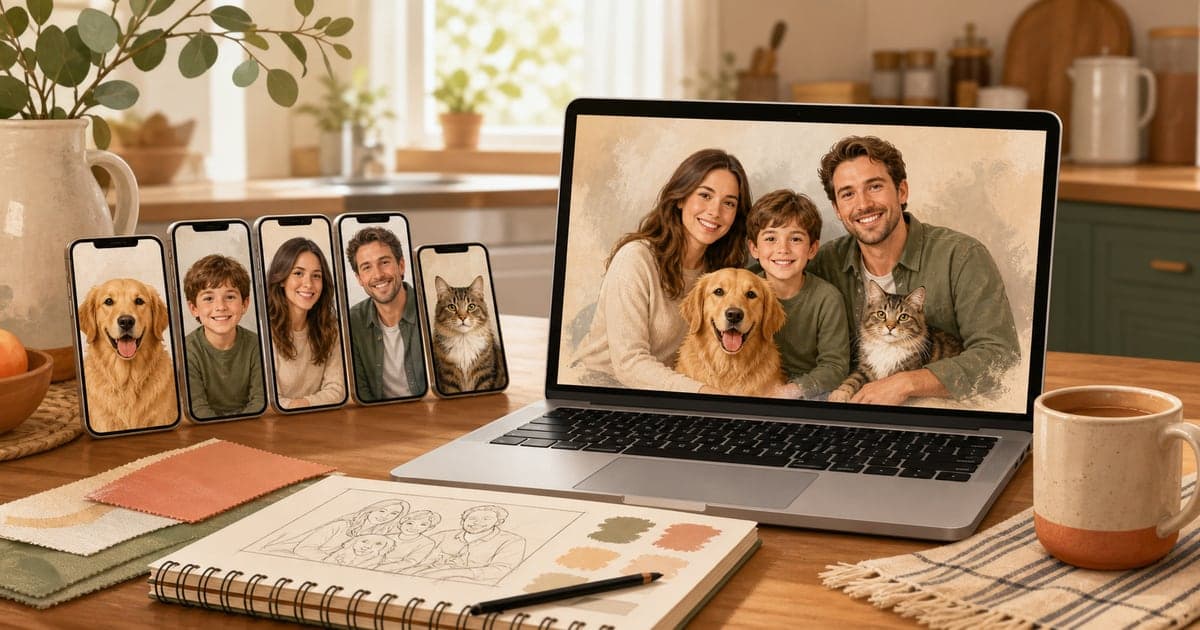
Use a clear pet photo, not just the cutest one
The cutest pet photo is not always the best reference photo. A blurry action shot can be adorable, but it may not give the AI enough detail to understand the pet's face, coloring, shape, and markings.
For dogs and cats, choose a reference photo with:
- A clear view of the face.
- Visible eyes, ears, and muzzle.
- Natural lighting.
- Minimal motion blur.
- The full body if you want the pet posed beside the family.
- A recent photo if the pet is a puppy, kitten, or has changed color or size.
If the pet has a distinctive marking, collar, ear shape, or coat pattern, pick a photo where that feature is easy to see. Those details are what make the final portrait feel like your pet instead of a generic dog or cat.
Pick a pet-friendly pose
Some family photo ideas are easy with pets. Others ask too much from the scene. A dog sitting beside a child on a sofa feels believable. A cat calmly centered in a formal studio lineup might work, but it can look staged if the rest of the portrait is too rigid.
Good AI family portrait ideas with pets include:
- Cozy couch portrait with the pet between family members.
- Backyard golden-hour photo with a dog sitting near the kids.
- Holiday card by the tree with the pet in front.
- Casual porch portrait with the pet on a lap.
- Clean studio portrait with the pet seated at one side.
- Bed or nursery portrait with a calm cat nearby.
If your pet is small, choose a composition where they will not disappear. If your dog is large, give the scene enough space so nobody looks squeezed.
Keep the scene calmer than you think
Pets add visual energy. Fur, collars, leashes, paws, toys, and movement can make a portrait feel busy fast. That is why a restrained scene usually works better than a highly detailed one.
For a natural result, avoid asking for too many extras at once. Instead of "family, dog, cat, snow, fireplace, matching pajamas, ornaments, toys, cookies, lights, and text," start with a simpler direction like "warm holiday card portrait on a couch with the dog seated in front."
If you are making a card, the same rule applies. Read the AI holiday card photo tips before choosing a busy Christmas scene.
Match the pet to the final purpose
The best portrait style depends on what you plan to do with the finished image.
For a wall portrait, choose something timeless: soft studio lighting, a living room portrait, a porch photo, or a warm outdoor scene. For a holiday card, use seasonal details but keep the pet visible. For a gift, pick a style that feels like the recipient's home, not just a trendy AI effect.
Useful directions include:
- "Natural family portrait with dog in warm living room."
- "Christmas card family photo with cat near the children."
- "Outdoor family portrait with golden retriever at golden hour."
- "Grandparent gift portrait with family dog included."
- "Soft studio family photo with small dog seated in front."
You can browse more finished looks on the vibes page if you want a portrait style before uploading references.
When not to include the pet
It is completely fine to leave the pet out if the final image has a different job. A formal professional-style portrait may work better without a restless puppy. A tiny newborn announcement may feel calmer without a large dog in the frame. A grandparent gift may need every person's face to be the priority.
Ask one simple question: would this pet normally be in this family moment? If the answer is yes, include them. If the answer is "only because we can," the portrait may be stronger without them.
Common mistakes with AI pet family photos
The most common mistakes are weak references and crowded instructions. Pets also expose realism problems quickly because people know exactly what their own pet looks like.
Avoid:
- Using a dark pet photo where the eyes are not visible.
- Uploading a tiny cropped screenshot.
- Asking for several pets in a very tight frame.
- Choosing a scene where the pet blocks faces.
- Adding costumes, props, and text all at once.
- Expecting a high-energy action pose to look like a calm portrait.
If your first result almost works, try the same family references with a calmer composition. Often the pet likeness improves when the scene is less demanding.
Quick checklist before you generate
Before you start, gather:
- One clear photo per person.
- One clear pet reference photo.
- A scene where the pet naturally belongs.
- A simple pose idea.
- A final purpose: wall portrait, card, gift, or keepsake.
Then add your family in My Family, choose a style, and generate a few options. Keep the image where the pet looks like part of the family instead of a sticker added afterward.
The takeaway
An AI family photo with pets works best when the pet is treated like a real subject: clear reference, believable pose, simple scene, and enough room in the frame.
When you are ready, open My Family, add each person, include your pet, and make a portrait that feels complete.
Make one now
Turn your photos into a family portrait.
Upload one clear photo per person, choose a portrait or card style, and keep the version that feels most like your family.